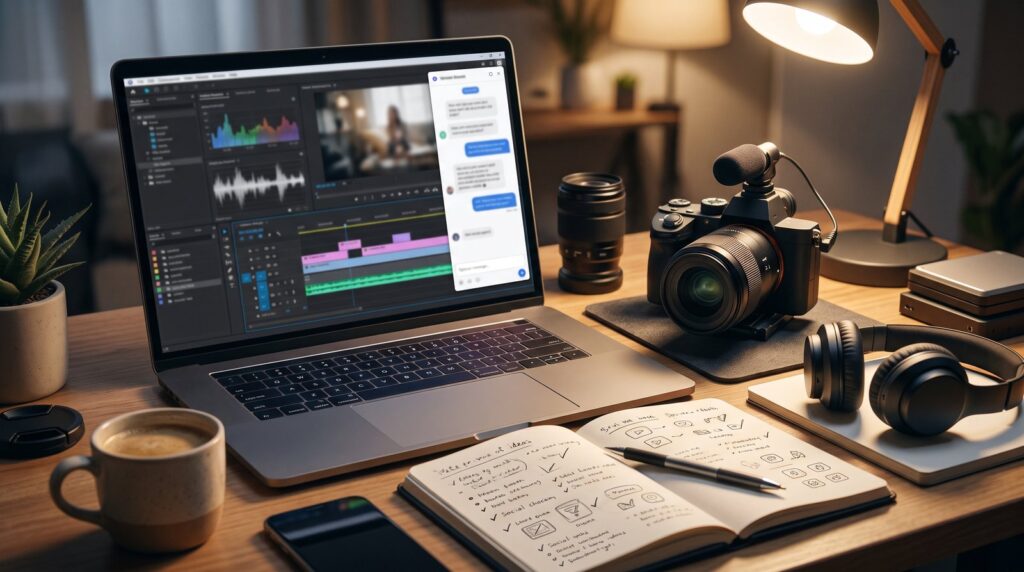
Many creators wonder how to keep a YouTube channel fed with videos when research, scripting, and upload details eat the whole week. One option is Claude in Chrome. This article walks through the YouTube workflows it can help with, with example prompts you can copy, plus the policy and safety guardrails to set up before you let an AI touch your channel.
What Is Claude in Chrome?
Claude in Chrome is a browser extension from Anthropic. It opens Claude in a side panel next to whatever page you have open, and it runs what Anthropic calls Cowork sessions. In a Cowork session, Claude can read the page you’re on, click buttons, type into fields, fill out forms, and navigate between tabs, all with your permission. That description comes straight from the extension overview.
The difference from a regular chatbot matters here. A chatbot answers questions about YouTube. Claude in Chrome works inside YouTube Studio with you.
Who Can Use It
Plan availability and features change often, so check Anthropic’s current documentation for what your plan includes. Claude can auto-approve actions it judges to be safe, using a safety classifier that checks each action against your request. You can switch that off in settings and approve every single action manually, which is the setting to use while you are learning the tool.
Why Agentic AI Fits YouTube So Well
YouTube is a browser-heavy platform. Research happens in the search bar. Publishing happens in YouTube Studio. Analytics live in a dashboard. Every one of those is a web page, which is exactly where a browser agent works best.
Agentic AI works best where tasks span several steps across web pages, and YouTube fits that description.
The YouTube algorithm rewards watch time, audience retention, click-through rate, and engagement. Claude can help you work on each of those levers faster.

Workflow 1: Keyword and Topic Research
Open YouTube in one tab and start a Cowork session. Then put Claude to work on two research jobs.
Mine the search suggestions
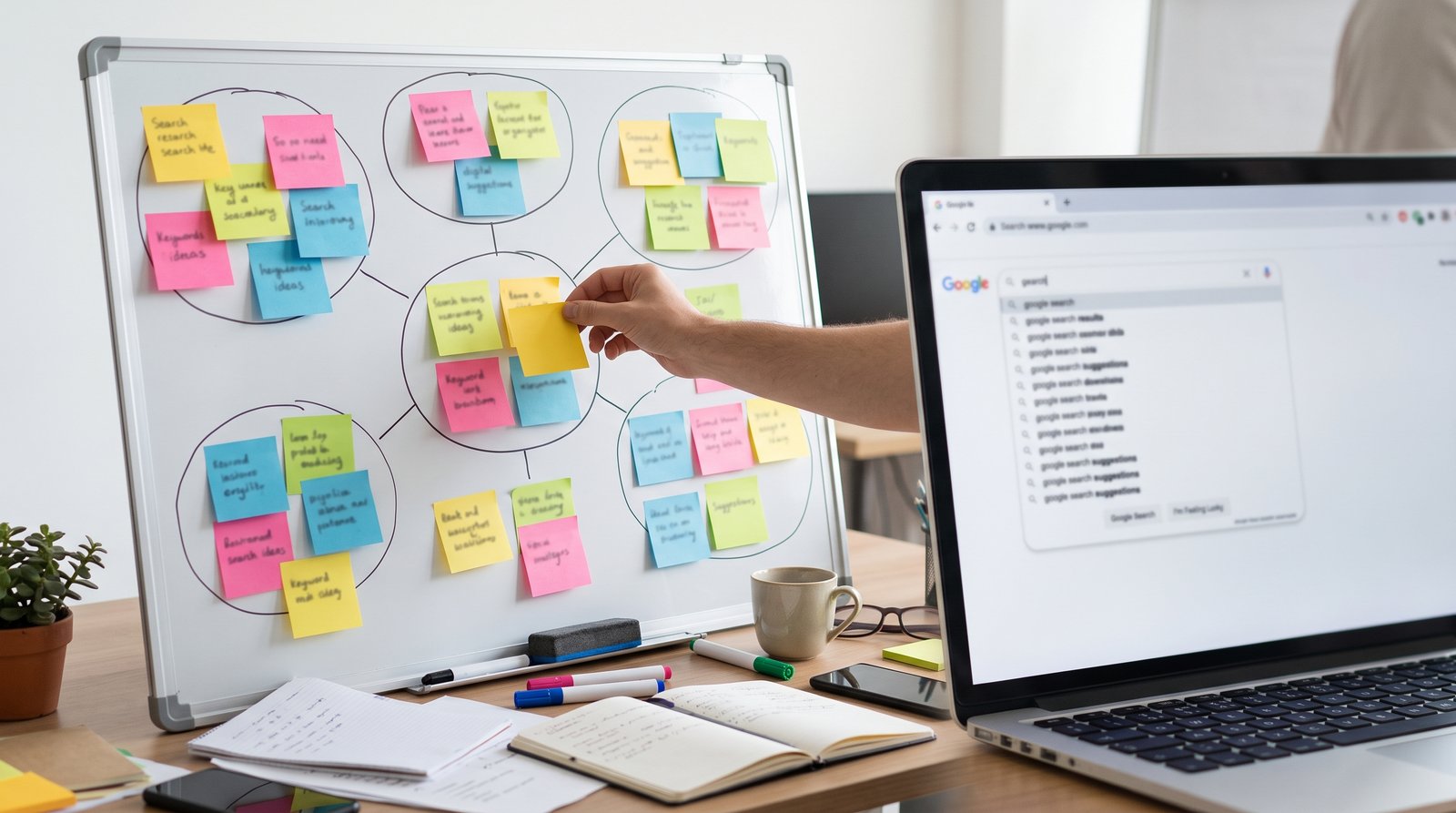
YouTube’s autocomplete shows you what real viewers type. Instead of manually testing dozens of seed phrases, hand the job over.
Example prompt: “Go to YouTube search and type ‘blogging for beginners’. Record all the autocomplete suggestions. Then repeat with ‘blog income’, ‘blog SEO’, and ‘start a blog’. Compile everything into a table grouped by search intent, and flag the five phrases that look best for a channel teaching blog monetization.”
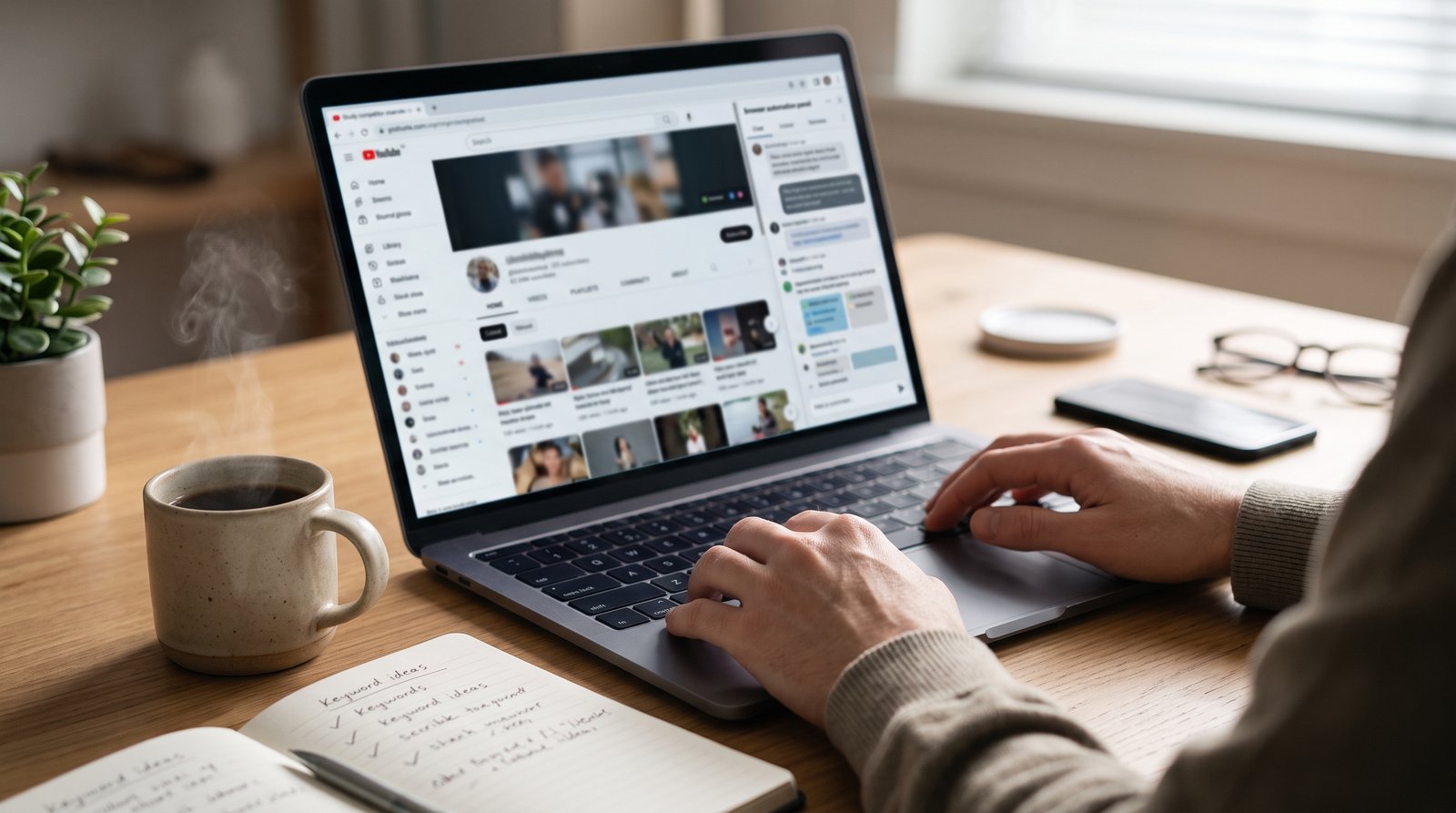
Study competitor channels
Ask Claude to open two or three channels in your niche, read their most popular videos, and summarize what topics, title styles, and video lengths perform for them.
Example prompt: “Open these three channels. For each one, go to the Videos tab sorted by Popular. List the top 10 video titles, their approximate view counts, and the topics they cover. Then tell me which topics all three channels cover and which topics none of them cover well.”
That last line is where the money is. Topics your competitors skip are your fastest path to ranking.

Workflow 2: Outlining and Scripting in Your Voice
Once you pick a topic, keep Claude in the same session so it carries your research forward into the script.
Long-form videos
Retention matters more than raw watch time: a video that holds attention outperforms a longer video that loses viewers early. So structure your script around retention from the first line.
Example prompt: “Using the research from this session, outline a 10-minute video called ‘How I’d Start a Blog in 2026’. Open with the payoff in the first 20 seconds, add a re-hook every 90 seconds, and end with a pointer to my related video. Write it in my voice: direct, encouraging, no hype. Here are two of my past scripts as voice samples.”
Paste two of your past scripts into the session as voice samples. Pasting past scripts is the step people skip, and it is the step that makes the output sound like you instead of a generic AI.

Shorts
Ask Claude to pull the single strongest idea from a long-form script and compress it into a short script with a hook in the first line. One long video can become several Shorts this way.
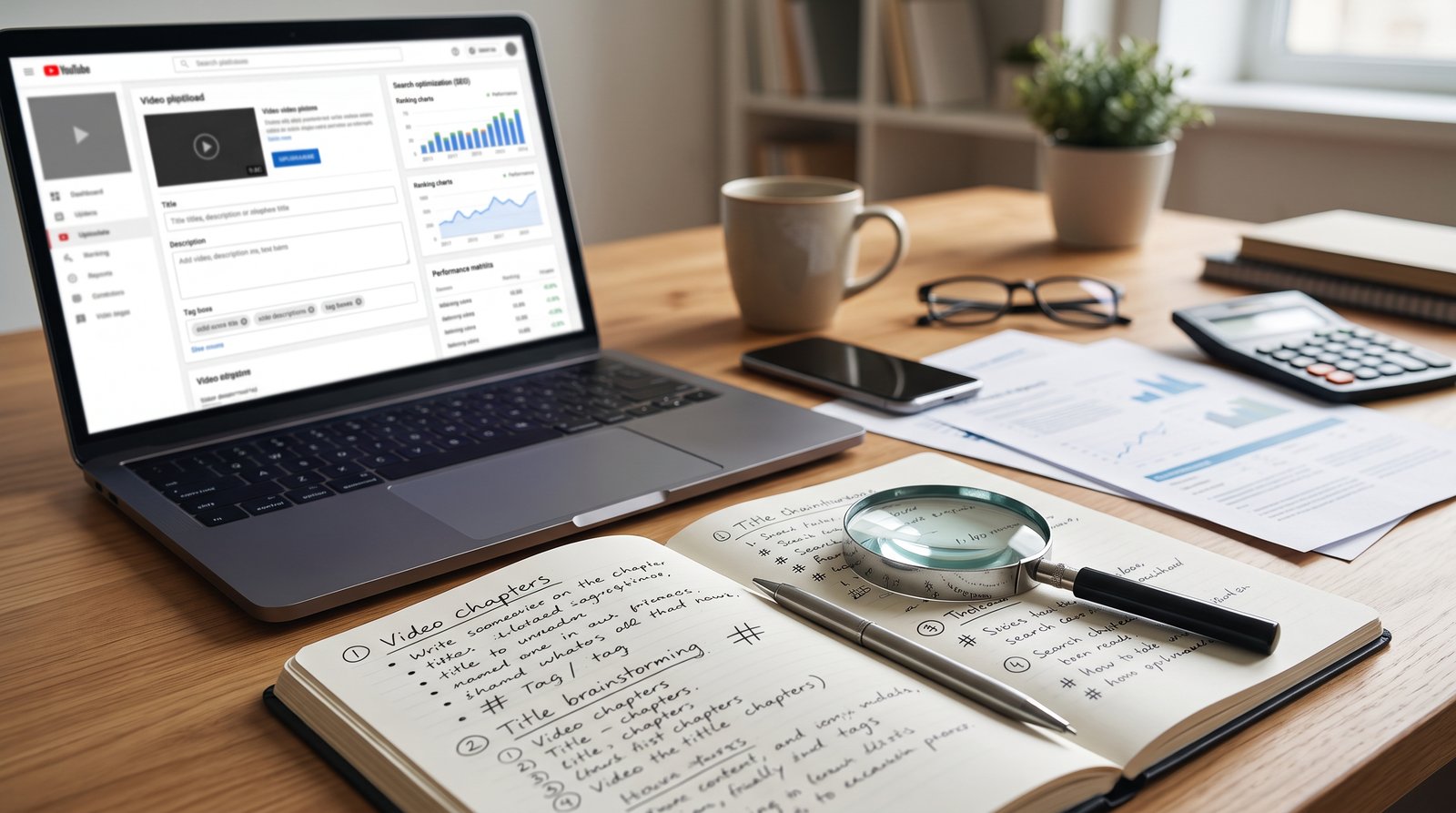
Workflow 3: SEO Titles, Descriptions, Chapters, and Tags
Well-structured titles, descriptions, and tags give YouTube the context it needs to index and rank videos. This is pure system work, which makes it a good job for an agent. Your title and thumbnail also drive click-through rate, so review them in your analytics.
Example prompt: “Based on this final script, write: five title options under 60 characters using the keyword ‘start a blog’, a 200-word description with the keyword in the first sentence, timestamped chapters matching the script sections, and 15 tags ordered from most to least specific.”
Pick the title yourself. Claude generates options fast, and you know your audience better than any model does.
One more structural tip: ask Claude to suggest which playlist each new video belongs in. Series and playlists build topical authority and increase session duration, which signals quality to YouTube’s search.

Workflow 4: Repurposing Between Your Blog and Your Channel

Blog post to video script
Open your published post in a tab and prompt: “Read this blog post and turn it into an 8-minute video script. Restructure for spoken delivery, cut anything that only works in text, and add a visual cue column telling me what to show on screen at each section.”
Turning one piece of work into two income-producing assets is one of the best uses of this workflow.
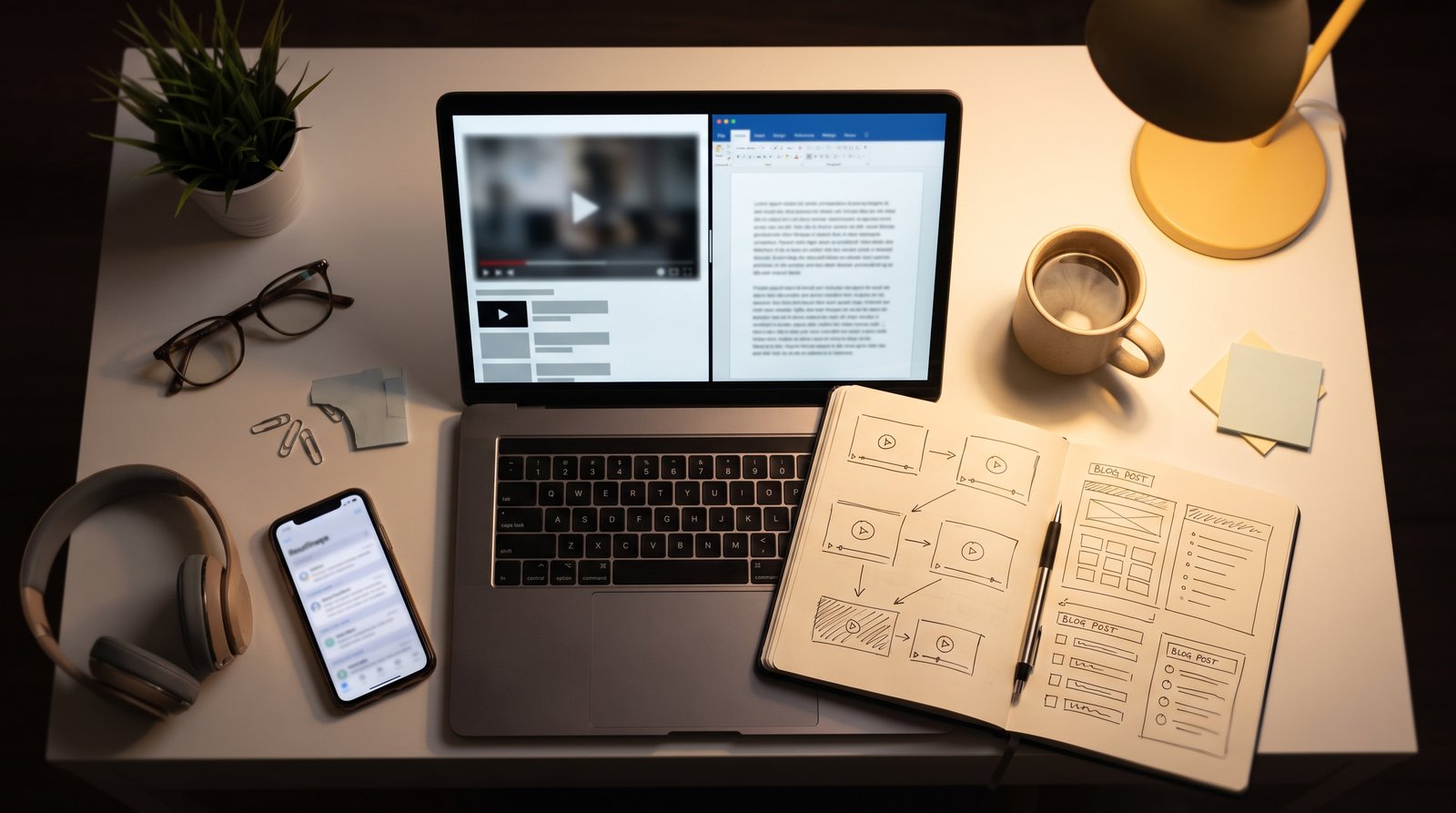
Video to blog post
Paste your video transcript and ask Claude to expand it into a full SEO blog post with headings, an intro that matches your site’s style, and an embed spot for the video. Your channel and your blog now feed each other, and both rank.

Workflow 5: Community Posts and Upload Details
Community posts keep subscribers warm between uploads. Ask Claude to draft a week of them in one sitting: a poll, a behind-the-scenes note, and a teaser for the next video.
For publishing, Claude in Chrome can navigate YouTube Studio and fill in your upload details, the title, description, tags, and chapter timestamps, into the right fields. Then you review everything before anything goes live.
That review step is non-negotiable. Skipping the review phase and auto-publishing AI drafts is the fastest way to damage credibility, so always include at least one human checkpoint before publication. In practice: let Claude fill the fields, and you click Publish.

Workflow 6: Analyzing Your YouTube Studio Analytics
Open your analytics dashboard, start a Cowork session, and ask Claude to interpret what it sees.
Example prompt: “Look at the retention graphs for my last five videos. Identify where viewers drop off in each one, find anything the drop-off points have in common, and give me three specific changes to test in my next script. Then check CTR by video and tell me which title styles are pulling above 4%.”
Claude reads the charts, compares across videos, and hands you a prioritized to-do list. Analysis that can take an afternoon by hand can take a fraction of the time, and you are more likely to act on it.

What to Keep Human
Keep clear boundaries. Avoid vague instructions like “manage my channel”, and keep the publish step human. These stay with you:
-
Your on-camera presence. You deliver the video. Viewers subscribe to a person.
-
Final title and thumbnail choice. These decide whether rankings become views. Your judgment wins here.
-
Stories and opinions. Claude structures them. The experiences have to be yours.
-
The Publish button. Every upload gets a full human review first.
-
Replies to comments. Community is infrastructure for your channel. Build it personally.

YouTube Policies: Automation and AI Disclosure
Good news for everyone using these workflows. YouTube’s AI disclosure policy targets realistic synthetic media, meaning things like voice clones and deepfakes, AI footage of events that never happened, and altered depictions of real people. Those require a disclosure label.
Using AI to write scripts, brainstorm titles, draft descriptions, or auto-caption does not require disclosure. The policy explicitly names AI script editing as acceptable. YouTube also states that disclosing AI content won’t limit a video’s audience or its eligibility to earn money, and a label alone does not change recommendations.
The practical rule: if your video shows realistic AI-generated visuals or audio that viewers could mistake for reality, label it. Everything in this article falls outside that requirement. And YouTube’s quality bar still applies, so your final video needs to demonstrate your creative vision and deliver real educational or entertainment value.

Account Safety Tips
Your channel is an income-producing asset. Protect it like one.
-
Start in manual approval mode. Approve each action until you trust the workflows, then loosen up for low-risk tasks like research.
-
Never let the agent publish. Fill fields, yes. Publish, no.
-
Keep sessions scoped. One task per session.
-
Watch the side panel while it works. The panel shows every action in real time, so stay present for anything touching Studio settings.
-
Stay away from monetization and account settings. Handle AdSense, permissions, and channel settings yourself.
-
Keep two-factor authentication on and review your account activity regularly.

Start With One Workflow This Week
You don’t need all six workflows on day one. Pick the one that drains the most of your time. Run it with Claude in Chrome this week, review the output, and adjust the prompts until they sound like you.
The creators growing fastest right now treat AI as a production system with a human editor on top. Build the system once, and every video after that gets cheaper to make and easier to optimize. That’s how a channel stops being a time sink and starts being an asset.

FAQ
Do I need a specific Claude plan to use Claude in Chrome?
Plan availability changes often, so check Anthropic’s current documentation to see which plans include Claude in Chrome.
Will using AI for my scripts hurt my monetization?
No. YouTube’s policy covers realistic synthetic visuals and audio. Text assistance like scripting, titles, and descriptions needs no disclosure, and YouTube states that disclosure labels don’t affect earning eligibility.
Can Claude in Chrome publish videos for me?
It can fill in upload details in YouTube Studio. One review checkpoint before anything goes live protects your channel and your credibility.
How is this different from pasting into a regular chatbot?
Claude in Chrome acts inside your browser. It reads live pages, types into fields, and moves between tabs, so it can research YouTube search suggestions, study competitor channels, and read your analytics dashboard directly instead of relying on what you paste in.
Is it safe to give an AI access to my YouTube account?
It’s manageable with the right setup. Use manual approval mode at first, scope each session to one task, watch the side panel as it works, and keep monetization and account settings off limits to the agent.
What should I write myself?
Your personal stories, your opinions, your on-camera delivery, your comment replies, and the final call on titles and thumbnails. Claude handles structure and volume. You supply the voice and the judgment.