Quick answer: a complete WordPress backup has two parts, the database (posts, pages, comments, settings) and the files (themes, plugins, uploads and wp-config.php). The official WordPress documentation says you need both to fully restore a typical site, suggests weekly backups for smaller sites and daily backups for busy ones, and recommends keeping at least three to five recent backups in different locations, such as your host, a cloud drive and your own computer. Always back up before updates, and test a restore at least once so you know the backup works.
Most bloggers think about backups for the first time right after something goes wrong: a plugin update breaks the layout, a hacked site starts redirecting visitors, or a host account gets suspended. By then it is too late to start.
A good backup routine takes very little time once it is set up. This guide explains what a backup of your WordPress site needs to include, the main ways to make one (from a backup plugin in the WordPress dashboard to a manual database backup), how often to do it, where to keep offsite backups and how to restore a site. It is part of our step-by-step guide on starting a blog that makes money, where protecting the site is one of the early setup tasks. The steps below follow the WordPress.org advanced administration documentation on backups, last updated in October 2026.

What a WordPress Backup Must Include
WordPress is a PHP web application, and like most web applications it stores your site in two places: files on the server and data in a database. A backup that only grabs one of them is incomplete.
The database
The database holds every post, page, comment, user account and most settings. The WordPress documentation is direct about the risk: if the database is erased or corrupted, you stand to lose everything you have written. In most setups, the WordPress database lives in a MySQL or MariaDB database system on your host, outside your WordPress folder.
The files
Your WordPress files are everything in your WordPress directory: WordPress core, your themes and plugins, the uploads folder with your images and media, and configuration files such as wp-config.php and .htaccess. The documentation lists core, plugins, themes, images and files, code files and any static pages as parts of a site that the database does not contain.
Why one without the other fails
A common misunderstanding is that downloading the WordPress folder also saves the database. The WordPress documentation explains that in a typical setup it does not, because the database lives in a separate system. A database export (a .sql file, sometimes compressed) can be stored alongside the file backup, but restoring it still means importing it back into the database.
The documentation also suggests treating the files and database as one “backup set” created around the same time. Its recommended order is to back up the database first, then the files, and to restore the files first, then the database.

Three Ways to Back Up WordPress
1. Your host's backup tools
The WordPress documentation notes that most hosts back up the entire server and that most provide software to back up your own site. Many managed WordPress hosts include daily backups with one-click restore. The catch, as the documentation points out, is that it can take time to get a copy from a host’s backups, and a fast recovery matters. Find out how long your host keeps backups, whether you can download them and whether restoring costs extra. Our comparison of WordPress hosting for new bloggers lists backup policies among the things to check before you buy.
Host dashboards: Site Tools, hPanel and cPanel
Where you find these backups depends on the host. SiteGround customers use the Backups section of its Site Tools panel, and the Hostinger dashboard (called hPanel) has its own Backups area for files and databases. Hosts that use cPanel often include a Backup or Backup Wizard tool. Look for three things in whichever panel you have: how often automatic backups run, how many days of copies are kept and whether there is a button to download a full copy to your own computer.
SiteGround Site Tools in practice
In SiteGround’s Site Tools, backups sit under Security, then Backups. SiteGround’s knowledge base says you can create an on-demand backup there by naming it and clicking Create, and restore everything or only selected files, databases or emails from the list of existing backups. According to the same page, the standard service keeps up to 30 daily backup copies on shared hosting plans and up to 7 on Cloud hosting, and GrowBig and higher plans include 5 free slots for manual backups. Taking an on-demand copy in Site Tools before a big change is a quick safety step, even if a plugin also runs backups.
The Hostinger dashboard
In the Hostinger dashboard, Hostinger’s documentation places backups under Backups in your website’s dashboard. It says automatic backups of site files and databases run weekly by default and daily on plans that include daily backups, and that weekly-only plans can add a Daily backups add-on. When restoring, you can choose files only, the database only or a full backup, and Hostinger’s restore guide reminds you to restore the database to the same date as the files when you restore a whole site. Manual backups can be generated once every 24 hours, and on entry-level plans that feature requires upgrading to a Business or higher plan. Check your own plan’s details, since included features vary.
2. A backup plugin
The WordPress Plugin Directory has many backup plugins that schedule automatic backups and send copies to cloud storage such as Google Drive, Dropbox or Amazon S3. Popular options cover the database and files together, offer scheduling, and include a restore button inside the dashboard. When choosing one, check:
- Whether it backs up both the database and all files, including uploads.
- Where copies are stored, and whether it supports off-site cloud storage.
- How restores work, including whether you can restore if the dashboard itself is broken.
- How large sites are handled, since big media libraries can time out on cheaper hosting.
- When it was last updated and whether it is tested with your WordPress version.
Plugin screens differ, so expect a short learning curve. UpdraftPlus, one of the most widely installed free backup plugins, puts its everyday controls on a Backup / Restore tab under Settings, then UpdraftPlus Backups. According to its developer’s documentation, that tab holds the Backup Now button and an Existing backups section where each backup can be restored, while schedules and remote storage are set on a separate Settings tab.
The documentation recommends backing up those automatic backups with a manual one once in a while, to make sure the automated process is working.
3. A manual backup
Manual backups take a little more effort but need no plugin and give you full control. You export the database through phpMyAdmin (or WP-CLI if your host offers command-line access) and copy the files using your host’s file manager, an FTP or SFTP client, or a sync tool. The step-by-step section below covers this.
Which should you use?
For most new bloggers, a combination works best: the host’s automatic backups as a safety net, a plugin that sends copies off-site on a schedule, and an occasional manual backup that you download yourself. Relying on a single method, especially one stored on the same server as the site, leaves you exposed if that server or account has a problem.

Backing Up From the WordPress Dashboard
If you would rather not touch phpMyAdmin or FTP clients, most of the work can happen inside the WordPress dashboard.
Using a WordPress backup plugin
After you install and activate a WordPress backup plugin, it adds a settings screen to the dashboard. A typical setup takes a few minutes:
- Choose what to include: the WordPress database, the WordPress files, or both. Pick both for a complete backup set.
- Set a schedule, such as daily for the database and weekly for files, to match how often you publish.
- Connect remote storage such as Google Drive, Dropbox or Amazon S3, so copies leave your server.
- Choose how many old backups to keep before the plugin deletes the oldest.
- Run a first backup by hand. Many plugins label this button “Backup Now,” and it is worth pressing before every update session too.
Check the plugin’s log after that first run to confirm both the database backup and the files finished without errors.
Real-time backups with Jetpack VaultPress Backup
Most plugins back up on a schedule, so anything you change between runs is at risk. Jetpack VaultPress Backup, made by Automattic, takes real-time backups that save changes as they happen and stores copies off your server, with restores started from the dashboard or a WordPress.com account. Real-time backups suit busy blogs, membership sites and online stores, where a day of lost comments or orders matters. Smaller blogs that publish a few times a week are usually well served by daily scheduled backups.
The built-in export tool is not a backup
WordPress includes an export option under Tools, then Export, that downloads your posts, pages, comments, menus, categories and tags as an XML file. It is useful for moving content to another WordPress site through XML imports under Tools, then Import. It is not a full backup: the file does not contain your theme, plugins or most settings, and images are referenced by their web address rather than saved inside the file. Keep an XML export as an extra copy of your writing, not as your restore plan.
Building a Backup Strategy: Full, Incremental and Offsite
A backup strategy answers three questions: what gets copied, how each copy is made and where it is kept. Knowing a few terms makes tools easier to compare.
Full and incremental backups
A full backup copies the entire site every time: the WordPress core files, the wp-content folder and a complete database backup. Incremental backups copy only what changed since the last run, which makes them faster and smaller, and is how real-time services keep up with busy WordPress sites. Many plugins combine the two, taking an occasional full backup with incremental ones in between. Restoring from incrementals depends on the whole chain being intact, which is one more reason to keep a recent full backup set somewhere separate.
What lives in the wp-content folder
The wp-content folder is the part of your WordPress files that is unique to your site: themes, plugins and the uploads folder, which holds every image and file in the Media Library. WordPress core files can be downloaded again from WordPress.org at any time, so wp-content, wp-config.php and the site database are the pieces you cannot replace.
Choosing a remote storage location
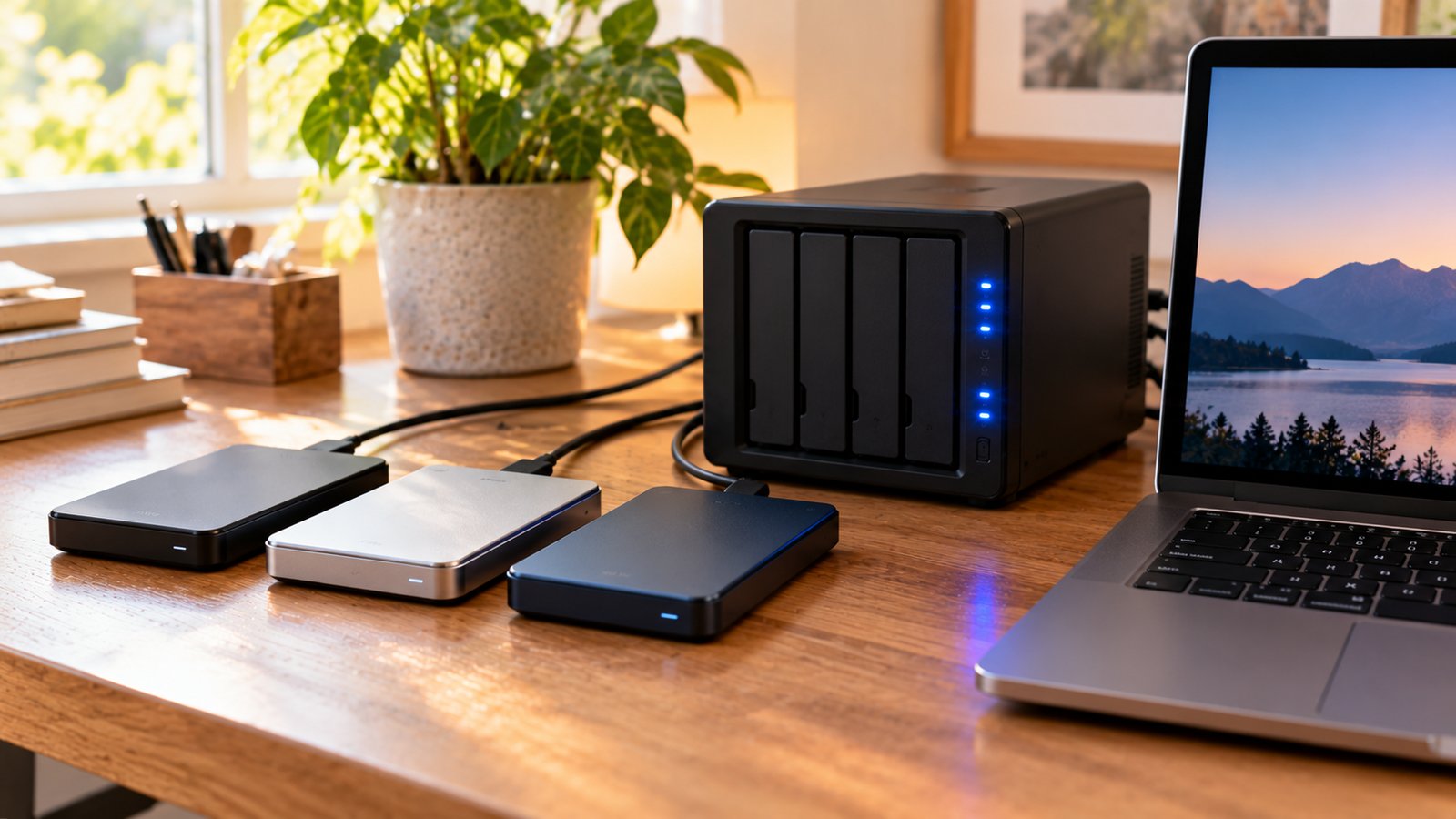
Offsite backups help only if the remote storage location is independent of your host. Remote cloud storage such as Google Drive, Dropbox or Amazon S3 is the usual choice, and many backup plugins can send copies to more than one. Pair one cloud service with one local copy, and make sure the login for that storage is not saved only on the site you are protecting.
Self-hosted WordPress vs WordPress.com
This guide is written for a self-hosted WordPress site, where you manage the hosting account yourself. On WordPress.com, backups depend on your plan. WordPress.com’s support pages say Jetpack VaultPress Backup, with real-time backups and one-click restores, is included on Business and Commerce plans, while free sites and Personal and Premium plans need to upgrade for it. Check what your plan includes rather than assuming either way.

How Often to Back Up and How Many Copies to Keep
Frequency
The WordPress documentation leaves the final choice to you, based on how often you publish and how you would feel about losing recent work. Its general suggestion is weekly backups for smaller sites with fewer posts and daily backups for high-activity sites. It also says to back up the database regularly and always before an upgrade or a move.
A practical way to think about it: your backup interval is the amount of work you are willing to redo. If you publish three posts a week and back up weekly, a failure could cost you a week of posts, comments and settings changes.
Number of copies and locations
The documentation recommends keeping at least three to five recent backups, stored in different places, for example one on your hosting server, one in cloud storage and one downloaded to your local computer. Keeping copies on different storage types protects you if one backup is corrupted or lost.
Before risky changes
Make a fresh backup before you:
- Update WordPress core, a theme or a major plugin.
- Install a new plugin that changes the database, such as an SEO, caching or membership plugin.
- Change themes or redesign the site.
- Move hosts or change your domain.
- Run a bulk edit, such as a search-and-replace across all posts.

Offsite Backups: Google Drive, Dropbox and Amazon S3
An offsite backup is a copy stored somewhere other than the server that runs your site. It is the copy that saves you when the host account itself is the problem.
Consumer cloud storage
Google Drive and Dropbox are the easiest offsite backups for most bloggers, since many backup plugins connect to them in a few clicks and you may already pay for the storage. Watch the space: a site with a large media library can fill a free plan quickly, and a full storage account is one of the most common reasons scheduled backups quietly fail.
Object storage such as Amazon S3
Amazon S3 and similar object storage services charge by the amount stored and transferred, which can be cheaper for large sites and lets you set rules that delete old backups automatically. Setup is more technical, because you create a storage bucket and access keys for the plugin. Give those keys permission to write backups only, and never reuse your main account login.
Your own computer and an external drive
Once a month, download a complete backup set and copy it to an external drive. It costs nothing beyond the drive, and it means at least one copy sits entirely outside any online account.

Step by Step: A Manual Backup
The exact screens vary by host, but the process is similar everywhere.
Back up the database first
- Log in to your hosting control panel and open phpMyAdmin. In cPanel it is under the Databases or MySQL Databases section; in Plesk, open the database from the Websites and Domains screen.
- Select the database that holds your WordPress site. If you are not sure which one, the database name is listed in wp-config.php.
- Click Export. The quick method works for most sites. With the custom method, the WordPress documentation suggests selecting all tables, saving the output to a file, choosing SQL format, and checking the options to add DROP TABLE and IF NOT EXISTS, which make restores smoother.
- Save the downloaded .sql file. Compress it if the database is large.
If your host provides WP-CLI, the command wp db export creates the same kind of file from the command line.
Then back up the files
- Connect with your host’s file manager or an SFTP client. FTP clients such as FileZilla work too, but choose SFTP when your host offers it, because plain FTP sends your login unencrypted.
- Download the entire WordPress directory, including wp-content (themes, plugins and uploads), wp-config.php and .htaccess.
- Compress the folder into a zip or tar archive to save space.
- Put the database export in the same folder or archive so the set stays together.
- Name it with the site and date, for example sitename-2026-10-21.
Store it in more than one place
Upload one copy to cloud storage and keep another on an external drive or your computer. Delete older copies only once you have several newer ones.

How to Restore From a Backup
A backup you have never restored is a hope rather than a plan. Practice once on a test site before you need it for real.
Restoring with a plugin or host tool
Most backup plugins and managed hosts offer a restore button that handles both files and database. Follow their instructions, and keep a manual backup handy in case the dashboard is unreachable.
Restoring manually
- Upload the backed-up WordPress files to the server, replacing the broken copy. The WordPress documentation recommends restoring files first.
- In phpMyAdmin, select the target database and use Import to load your .sql file.
- If the database name, user or password changed, for example after a move to a new host, update the matching values in wp-config.php.
- Visit the site, log in, and check posts, images, menus and forms.
- Re-save your permalink settings if links return errors.
Restoring to a new domain or site address
If you restore to a different domain, the WordPress Address and Site Address settings stored in the site database still point to the old one. The WordPress documentation on changing the site URL explains how to update them, including defining WP_HOME and WP_SITEURL in wp-config.php when you cannot reach the dashboard. Links inside posts may also need a careful search-and-replace with a tool that handles serialized data, such as the wp search-replace command in WP-CLI.
Test on a local or staging copy
Many hosts include a staging site where you can restore a backup without touching the live site; testing changes on a copy first is standard practice in WordPress development. You can also run a copy of WordPress on your own computer; our guide to building a WordPress site offline explains local setups that work well for test restores.

Backup Mistakes That Cause Trouble
Keeping every copy on the same server
If the host account is suspended, hacked or deleted, backups stored only on that server disappear with it. Always keep an off-site copy.
Backing up files but not the database
The site would look right but have no posts. Check that every backup set includes a fresh database export.
Never checking automated backups
Plugins can fail quietly when storage fills up, credentials expire or the site grows. The WordPress documentation’s advice to add an occasional manual backup exists for this reason. Look at your backup log once a month.
Leaving backups publicly accessible
Backup archives can contain wp-config.php with database passwords and user data. Do not leave backup files in a public folder on your web server, and protect cloud storage accounts with strong passwords and two-factor authentication.
Restoring an infected backup
If a site was hacked, the most recent backup may include the malicious code. Pick a backup from before the problem started, and update all passwords, plugins and themes after restoring.
Waiting until after an update
Updates are the most common moment for something to break. Make backing up the first step of every update session, not an afterthought.

A Simple Backup Routine for New Bloggers
- Confirm what your host backs up, how long it keeps copies and how to download or restore them.
- Install one reputable backup plugin and schedule weekly full backups, or daily if you publish most days, with copies sent to cloud storage.
- Keep at least three to five recent backups in different places.
- Make a manual backup before every update session or major change.
- Download a complete backup set to your own computer once a month.
- Test a restore on a staging or local site at least once, and again after big changes to your setup.
- Write down where backups live and how to restore them, and store those notes somewhere you can reach if the site is down.
Backups pair naturally with other maintenance habits, such as the quarterly reviews in our guide to auditing an old blog’s content, so it is easy to fold them into the same calendar reminder.

Frequently Asked Questions
How do I back up my WordPress site for free?
Use your host’s included backups, a free backup plugin from the WordPress Plugin Directory, or a manual backup: export the database in phpMyAdmin and download the files with your host’s file manager or an SFTP client.
Does Jetpack VaultPress Backup do real-time backups?
Yes. Jetpack VaultPress Backup saves changes as they happen and stores copies off your server. Most other backup plugins run on a schedule instead, which is fine for blogs that publish a few times a week.
Is the WordPress export tool a full backup?
No. Tools, then Export, creates an XML file of your content for XML imports into another WordPress site. It leaves out themes, plugins, most settings and the image files themselves, so you still need a database backup and a copy of your WordPress files.
Does my web host back up my site automatically?
Many do, and the WordPress documentation notes that most hosts back up the whole server. Check how often, how long copies are kept and how quickly you can get a restore, and keep your own copies as well.
How often should I back up WordPress?
The WordPress documentation suggests weekly backups for smaller sites and daily backups for high-activity sites, plus a backup before every upgrade.
What is the difference between backing up files and the database?
Files include WordPress core, themes, plugins, uploads and configuration files. The database stores posts, pages, comments, users and settings. You need both to fully restore a site.
Where should I store WordPress backups?
In more than one place. The documentation suggests keeping copies on your host, in cloud storage and on your own computer, so one failure cannot wipe out every copy.
What is an incremental backup?
An incremental backup copies only the files and database changes made since the previous backup. It is faster and uses less storage than a full backup, but a restore depends on the earlier backups in the chain, so keep a recent full backup as well.
Where are backups in SiteGround Site Tools?
SiteGround’s help pages place them under Security, then Backups, in Site Tools, where you can create an on-demand backup or restore files, databases or emails from an existing copy.
Sources: WordPress.org Advanced Administration Handbook, Backups (last updated October 14, 2026), plus its linked pages on backing up files and the database; WP-CLI command reference (wp db export); WordPress.org documentation on Tools, Export and Import; Jetpack VaultPress Backup product information; SiteGround and Hostinger help centers on backups; SiteGround Knowledge Base (Backup service in Site Tools); Hostinger documentation (website backups and restores); WordPress.org documentation on changing the site URL; WP-CLI command reference (wp search-replace); TeamUpdraft UpdraftPlus documentation (Backup / Restore and Settings tabs); WordPress.com Support (restoring from a backup; plan features) and WordPress.com developer docs (real-time backup).